
Research@MIT allows principal investigators (PIs) (or those listed as Supervisor on SAP 001 notices) and administrators to:
- Review funding on sponsored program and other accounts
- View current projections with a calculated burn rate
- Create simple forecasts
Access Research@MIT
Use Research@MIT in your browser (Touchstone required) or download Research@MIT from the MIT App Store (Touchstone required). Learn how to get started with the app.
Roles
- PIs (or Supervisor as listed on SAP 001 notice) have automatic access to their accounts in Research@MIT.
- Administrators: To access PI/Supervisor account information, complete Admin-PI Mapping [XLSX] and send to ra-help@mit.edu. Seeing financial details may require financial authorizations through Roles DB in the DLCI where the account(s) are established.
Locating Funding and Forecasting Information
The location of funding and forecasting information in Research@MIT depends on your role.
-
PIs/Supervisors access funding and forecasting information in Research@MIT under Funding in the left navigation.
Image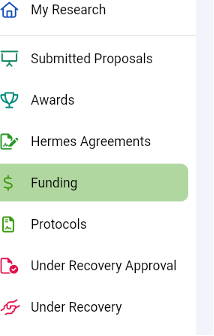
-
Administrators access funding and forecasting information in Research@MIT under Principal Investigators in the left navigation.
Image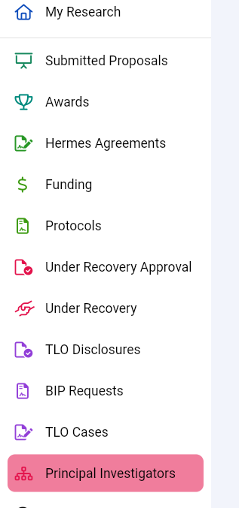
All Accounts: Funding and Forecasting Information
Funding and forecasting information for all accounts is summarized in three tabs.
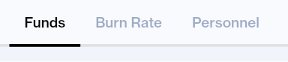
- Funds shows a financial summary of all accounts, both research and discretionary.
- Burn Rate shows spending of the prior 12 months, using a calculated burn rate.
- Personnel shows current personnel commitments and costs for all accounts.
Individual Accounts: Projections
To create and view projections for an individual research account:
- In the Funds tab, select the research account.
- From the four tabs displayed for an individual account, select Projection (BETA).

The Projection (BETA) tab allows you to:
- Change start/end date(s) for existing personnel
- Add additional personnel
- Add purchase commitments, such as travel
- Save and share projections with others who can view the account

Creating and Saving Views of Accounts
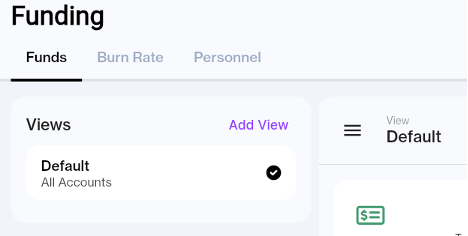
The default view shows all accounts. To create views with a select account or group of accounts:
- Open the menu.
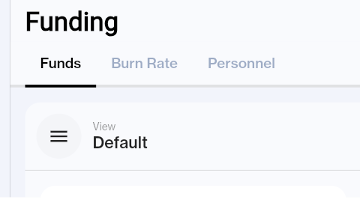
- Select Add View.
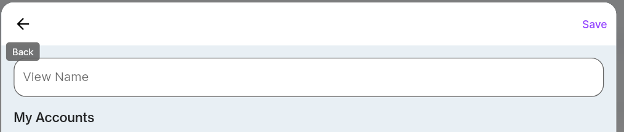
- In “View Name” field, enter the name of the select group of accounts, then click Save:
Questions
Please contact the RA Support team (ra-help@mit.edu) with questions.